

Credentials
To securely provide your API keys, you have two options. One is to store them in your browser in local storage. Alternatively, you can set them as environment variables on the server side. If both are set at the same time, the credential set in the browser will take precedence.Option 1: Store API Keys in the Browser
API keys can be entered in the playground application via the API Keys dropdown menu. This option stores API keys in the browser. Simply navigate to to settings and set your API keys.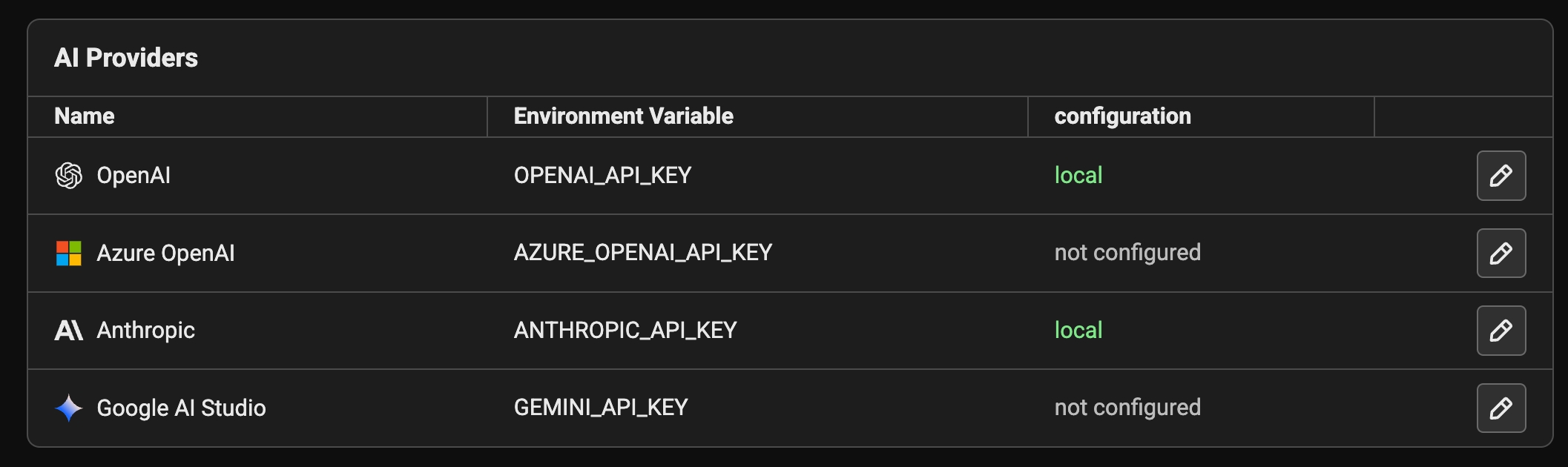
Option 2: Set Environment Variables on Server Side
Available on self-hosted Phoenix If the following variables are set in the server environment, they’ll be used at API invocation time.| Provider | Environment Variable | Platform Link |
|---|---|---|
| OpenAI | - OPENAI_API_KEY | https://platform.openai.com/ |
| Azure OpenAI | - AZURE_OPENAI_API_KEY - AZURE_OPENAI_ENDPOINT - OPENAI_API_VERSION | https://azure.microsoft.com/en-us/products/ai-services/openai-service/ |
| Anthropic | - ANTHROPIC_API_KEY | https://console.anthropic.com/ |
| Gemini | - GEMINI_API_KEY or GOOGLE_API_KEY | https://aistudio.google.com/ |
| AWS Bedrock | - AWS_ACCESS_KEY_ID - AWS_SECRET_ACCESS_KEY - AWS_SESSION_TOKEN - AWS_BEARER_TOKEN_BEDROCK | https://aws.amazon.com/bedrock/ |
For Azure, you can also set the following server-side environment variables:
AZURE_TENANT_ID, AZURE_CLIENT_ID, and AZURE_FEDERATED_TOKEN_FILE to use WorkloadIdentityCredential.AWS Bedrock AuthenticationWhen using AWS Bedrock, Phoenix leverages the standard boto3 credential chain or the
AWS_BEARER_TOKEN_BEDROCK environment variable. This means if you are running Phoenix on an EC2 instance with an assigned IAM role, have ~/.aws/credentials configured, or have exported AWS_BEARER_TOKEN_BEDROCK, you do not need to explicitly provide credentials.To use this fallback behavior, do not fill out the AWS credentials in the Playground settings. The client will automatically discover and use the available credentials from the environment.Using OpenAI Compatible LLMs
Option 1: Configure the base URL in the prompt playground
Since you can configure the base URL for the OpenAI client, you can use the prompt playground with a variety of OpenAI Client compatible LLMs such as Ollama, DeepSeek, and more.\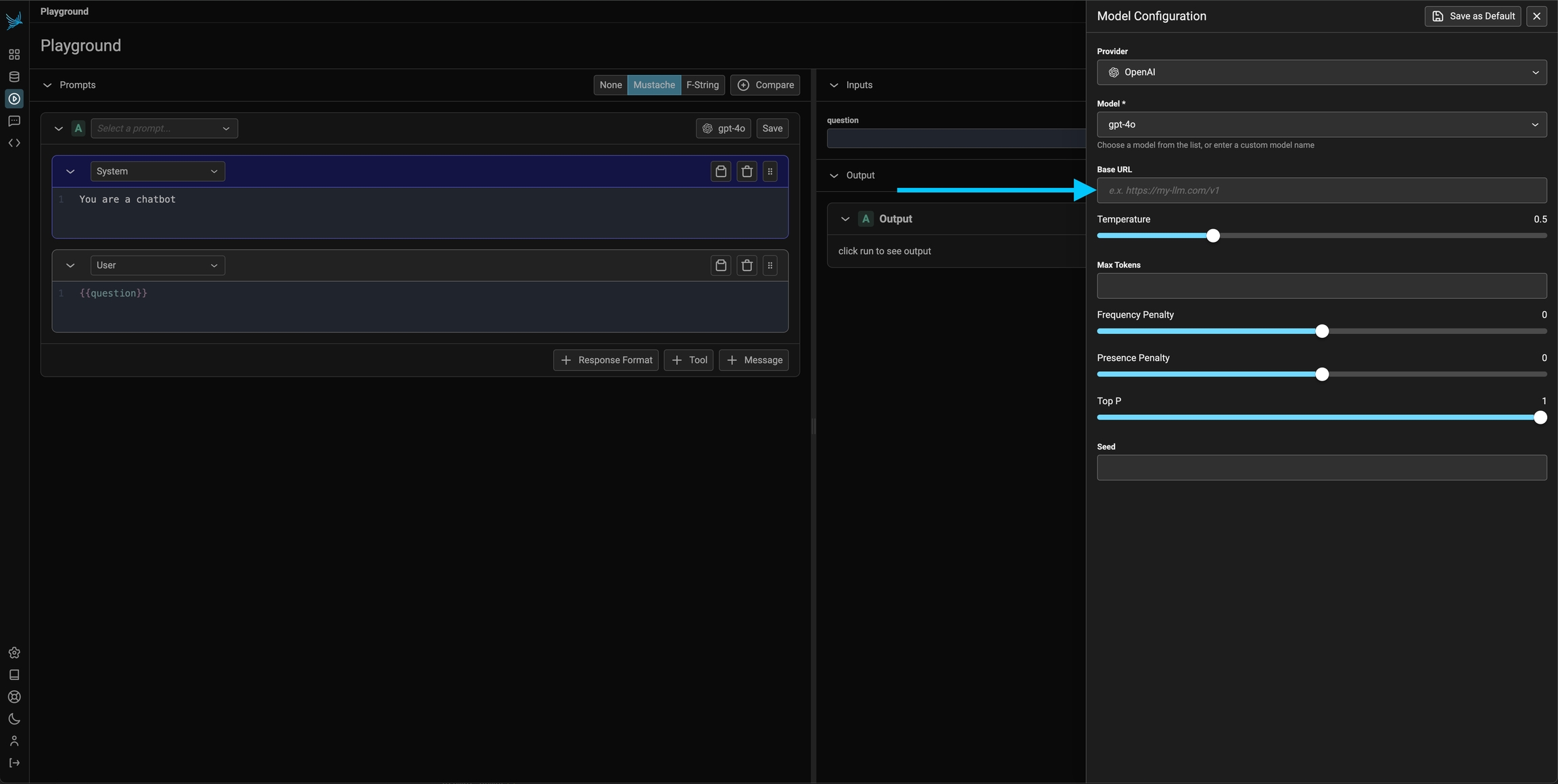
If you are using an LLM provider, you will have to set the OpenAI api key to that provider’s api key for it to work.
Option 2: Server side configuration of the OpenAI base URL
Optionally, the server can be configured with theOPENAI_BASE_URL environment variable to change target any OpenAI compatible REST API.
OpenAI and Azure OpenAI support two API types: Chat Completions (
chat.completions.create) and Responses (responses.create). For built-in providers, choose the API type from the model configuration panel in the Playground. For custom providers, set the API type in the provider configuration. Built-in providers default to Chat Completions, while custom providers default to Responses.Custom Providers
Custom providers let you store provider credentials and routing settings on the server and reuse them across the playground and prompt versions. This is ideal for shared environments where you want a single, managed configuration instead of per-browser API keys or ephemeral routing fields.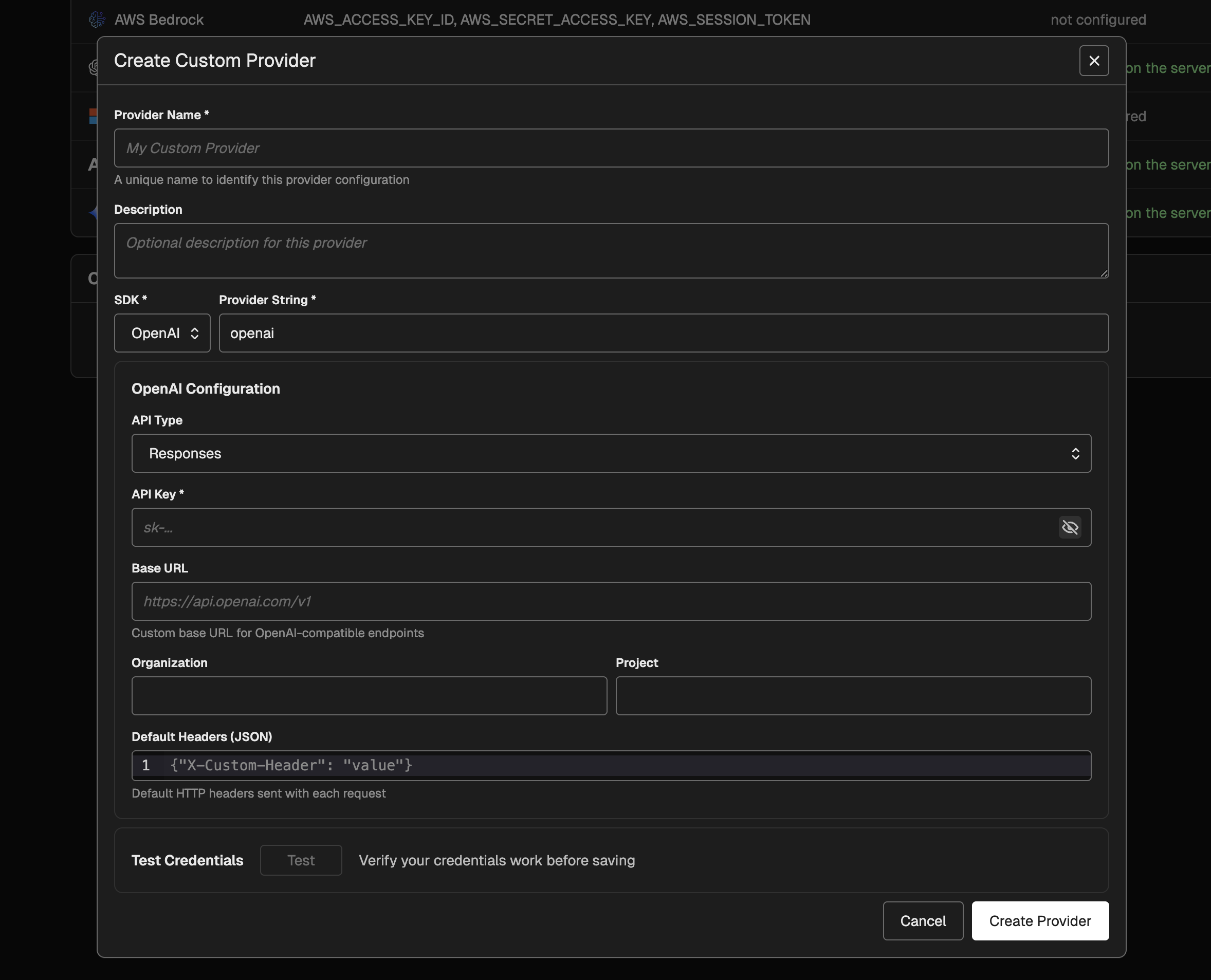 To create a custom provider:
- Go to Settings → AI Providers.
- In Custom Providers, select New Provider.
- Enter a Name and a Provider String.
- Choose the SDK and fill in the required fields.
- Click Test to validate the credentials, then Create Provider.
Supported SDKs and Fields
OpenAI Required: API key, API type (Chat Completions or Responses) Optional: Base URL, Organization, Project, Default headers Azure OpenAI Required: Endpoint, authentication method API key auth: API key AD token provider auth: Tenant ID, Client ID, Client Secret (Scope optional) Default credentials auth: Endpoint only Optional: Default headers Anthropic Required: API key Optional: Base URL, Default headers AWS Bedrock Required: Region, authentication method Access keys auth: Access Key ID, Secret Access Key (Session Token optional) Default credentials auth: Region only Optional: Endpoint URL Google GenAI Required: API key Optional: Base URL, HeadersUsing Custom Providers in the Playground and Prompts
Custom providers appear in model selection menus as their own provider group. When you select one:- The model list mirrors the built-in model list for that SDK.
- Routing fields (base URL, Azure endpoint, AWS region) are pulled from the custom provider config.
- You can still add request-level custom headers from the model configuration panel.
Custom Headers
Phoenix supports adding custom HTTP headers to requests sent to AI providers. This is useful for additional credentials, routing needs, or cost tracking when using custom LLM proxies.Configuring Custom Headers
- Click on the model configuration button in the playground
- Scroll down to the “Custom Headers” section
- Add your headers in JSON format: